Editor
The latest version of the editor component allows for more changes to be made and styling to be applied.
Blocks
Each section in the editor window is a block. You can edit a block by clicking on the block icon in the left margin which becomes visible when the cursor is placed in a block.
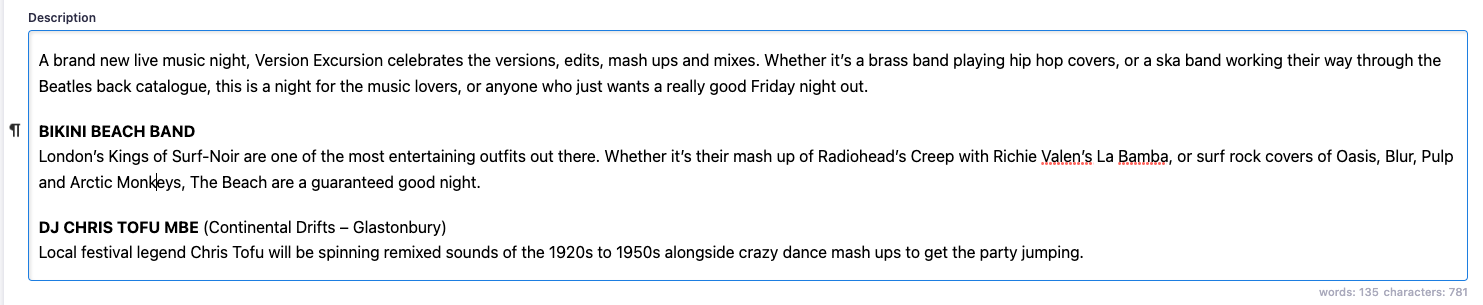
When you click on the icon you are then shown a menu with various options as seen below:
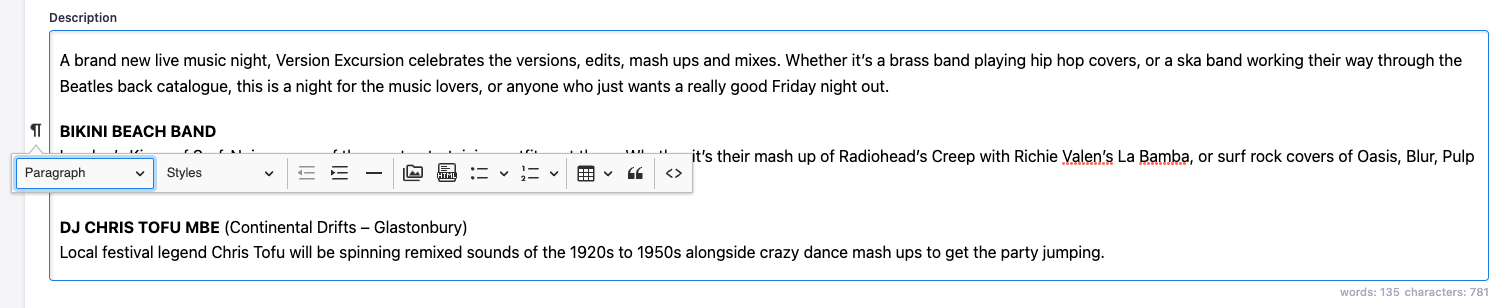
There are various options available here but to highlight the main ones that will be used most frequently:
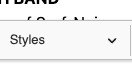
The styles dropdown gives options to add in a CTA button and a link pre-styled to fit in with the Big Penny styles.
As an example, to add in a button which links to another page, first enter some text for the button and then highlight it to show the styling bubble and then click on the link button to enter the url you want to take the visitor too. Then hit the block icon and select CTA Button from the styles dropdown.
In a similar manor, you can do the same with the link style from the styles dropdown.
To add html to a content block such as a video embed from any video site such as youtube, first get the emded code from youtube and then hit the block icon where you would like to place the video and then hit the html button on the block menu

This will give an area to paste in the embed code. Once saved you will see the video embeded correctly.
Styling
To style text within a block, simply highlight the text to be styled and a bubble menu will appear with various styling options.